
Create the Team Project Report in Excel
Export Azure DevOps Team Projects to Excel using the OData endpoint is an easy and efficient way to generate detailed reports. This method lets you view key information such as Team Project ID, project name, and last update time directly in Excel. By leveraging Excel’s powerful reporting features, you can quickly create list reports for analysis and share insights across your team. Plus, this approach integrates seamlessly with Power BI, making it ideal for advanced data visualization and Azure DevOps reporting.
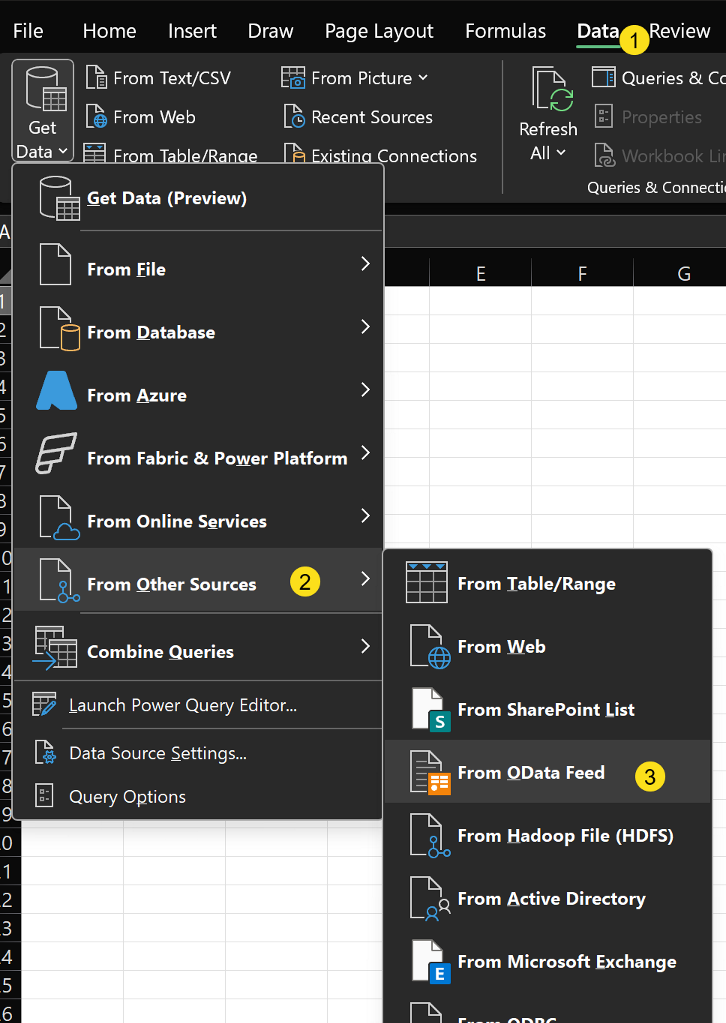
Open Excel and go to Menu -> Data -> From other Sources -> From ODATA Feed
ODATA Query:
Read this blog post if you are new to creating and testing ODATA queries. The users are stored at the ADO org level. You will need to replace the YOUR-ADO-ORG with the name of your ADO Org.
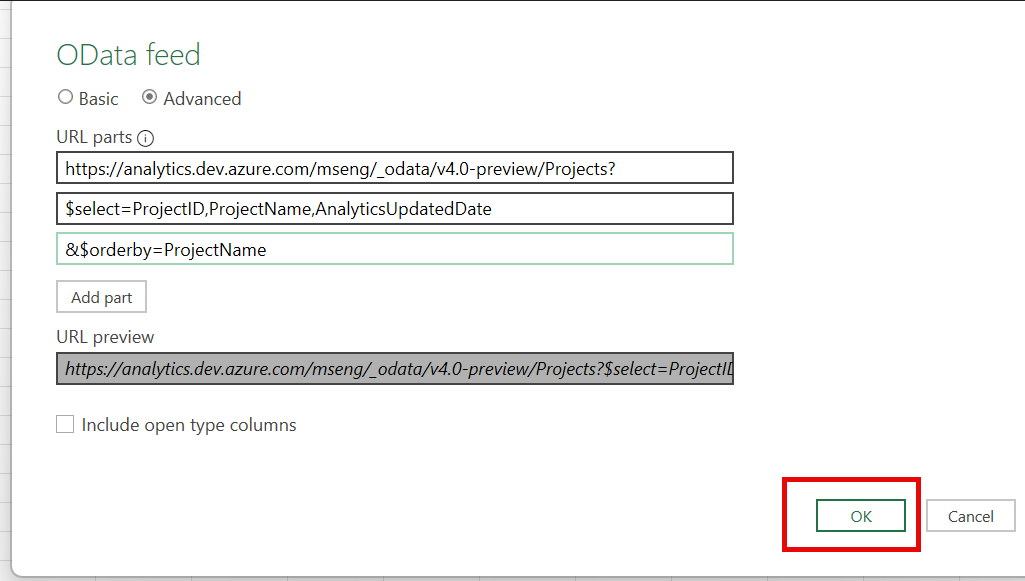
https://analytics.dev.azure.com/mseng/_odata/v4.0-preview/Projects?
$select=ProjectID,ProjectName,AnalyticsUpdatedDate
&$orderby=ProjectName
This is the ODATA query when entering into the ODATA Feed dialog box
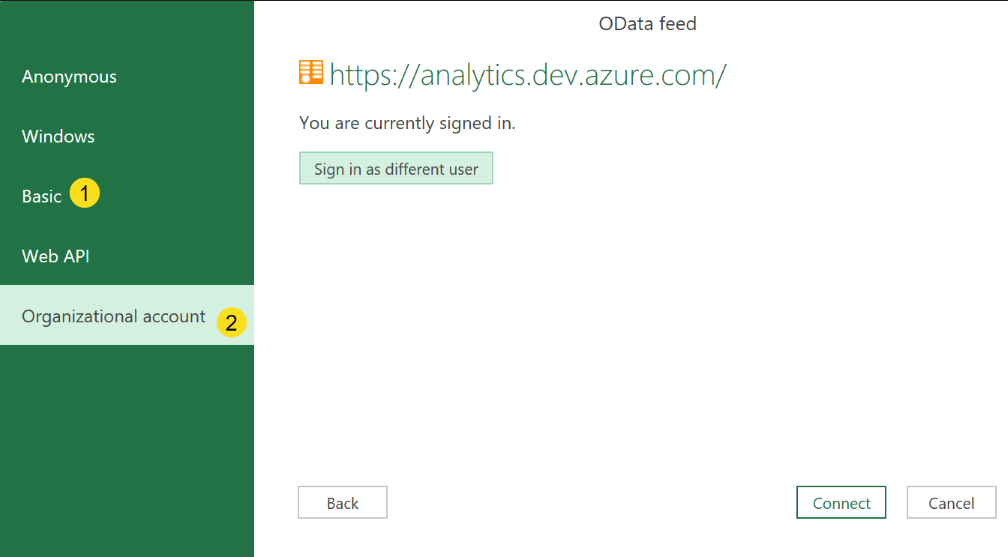
Authenticate to ADO using either a PAT token or your organizational account.
Select Transform is you want to change the Analytics Updated date from Date/Time zone to Date/Time.
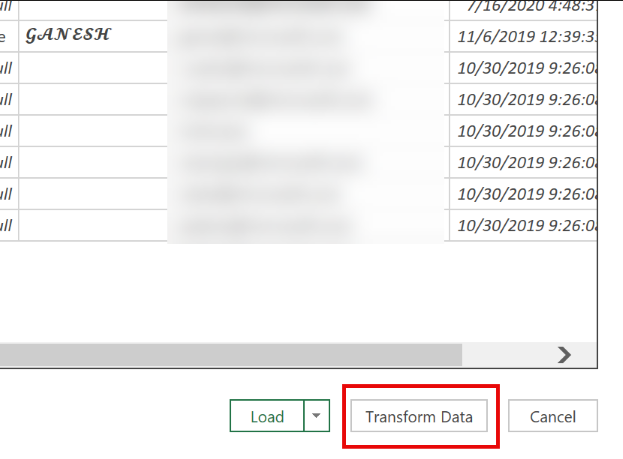
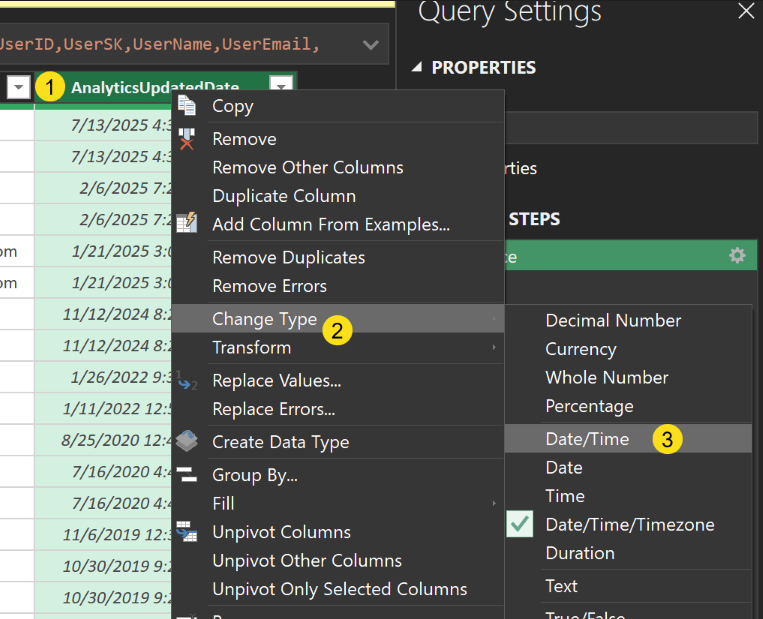
Select Close and Load to output the data to Excel
CHANGES to QUERY:
In the situation where you need to change the source query, follow these steps.
From the menu, select DATA -> Queries and Connections
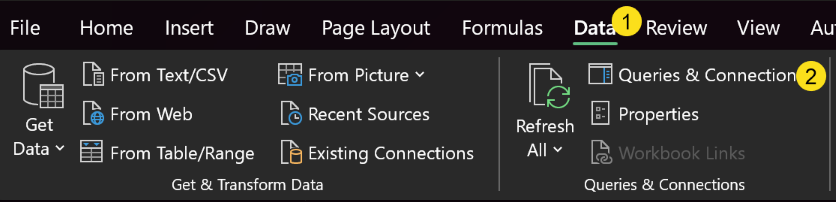
Either hover over the query and select Edit or right click and select Edit.
This opens the Power Query editor screen.
Select the Advanced Editor option.
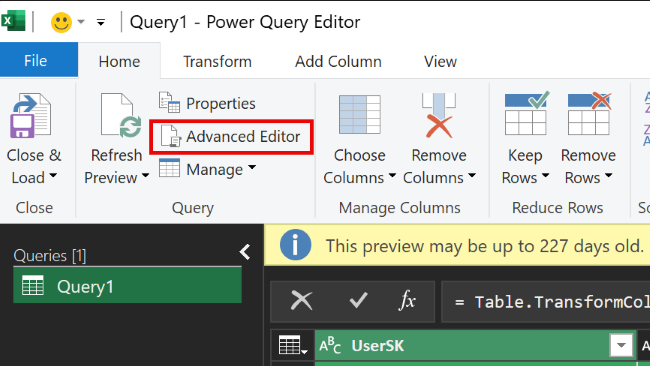
Make change to the query and select Done. This will reload the data to the Power Query editor.