
Generating a report of users from Azure DevOps (ADO) using Excel via the ODATA endpoint is a straightforward method to view user details, including their login names and the last time their information was updated. Excel serves as an excellent starting point for creating list reports. This blog post shows you to export Azure DevOps users to Excel to use for reporting.
NOTE: The ODATA query used in this blog can be used in Power BI reporting.
Using Excel for ADO Reporting:
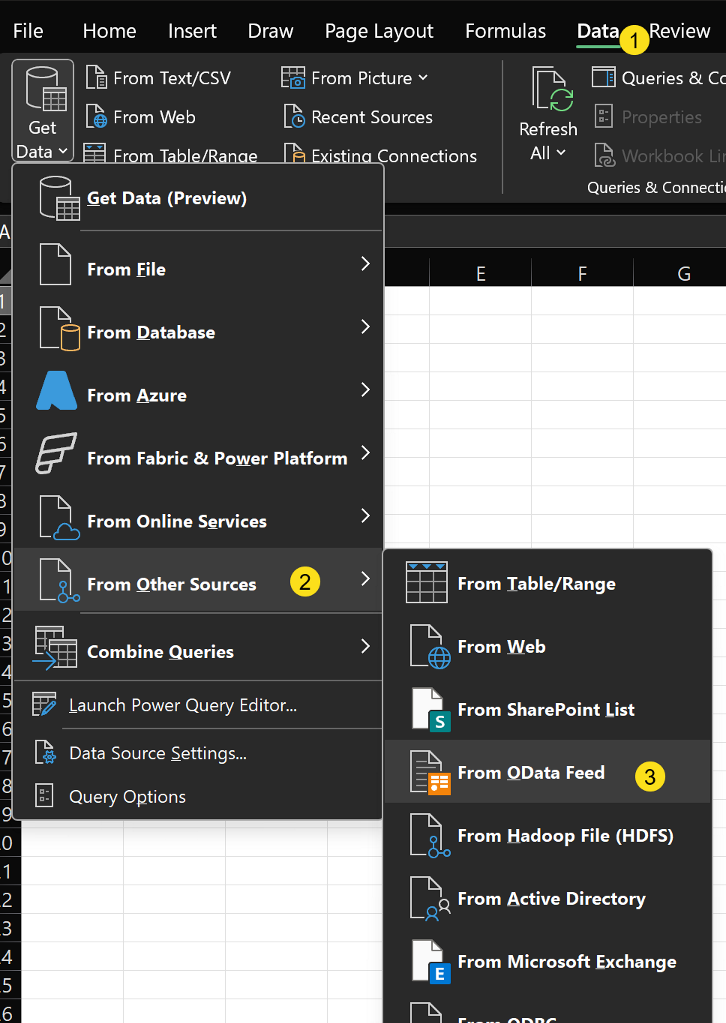
Open Excel and go to Menu -> Data -> From other Sources -> From ODATA Feed
ODATA Query:
Read this blog post if you are new to creating and testing ODATA queries. The users are stored at the ADO org level. You will need to replace the YOUR-ADO-ORG with the name of your ADO Org.
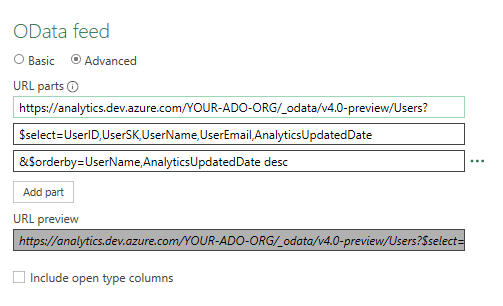
 https://analytics.dev.azure.com/YOUR-ADO-ORG/_odata/v4.0-preview/Users?
$select=UserID,UserSK,UserName,UserEmail,AnalyticsUpdatedDate
&$orderby=UserName,AnalyticsUpdatedDate desc
Enter the code one line at a time into the ODATA connector. Remember to add your ADO Org name to the query.
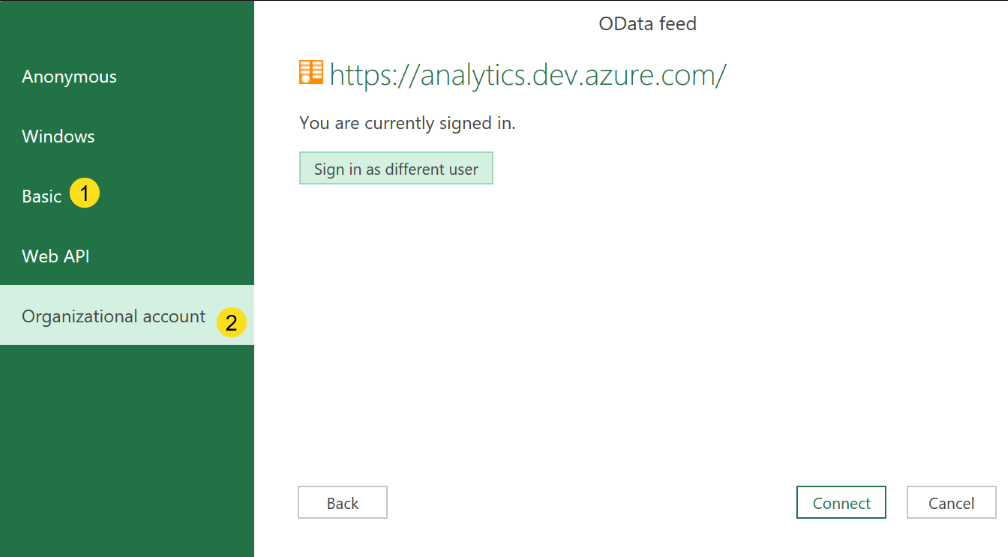
You will need to authenticate. Use either a PAT or your organizational account.
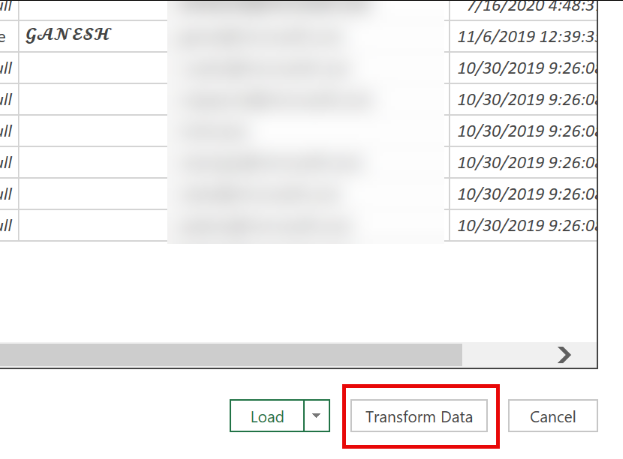
Select Transform is you want to change the Analytics Updated date from Date/Time zone to Date/Time.
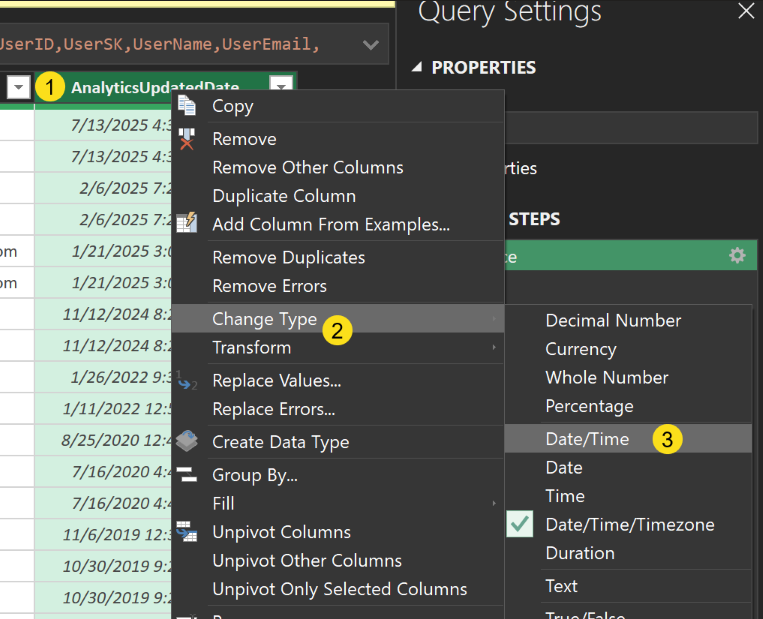
Select Close and Load to output the data to Excel.
NOTE: These steps are the same for Power BI.
This is the M-Code for the Power Query Editor if you want to skip the ODATA connector:
let
    Source = OData.Feed("https://analytics.dev.azure.com/YOUR-ADO-ORG/_odata/v4.0-preview/Users?"
    & "$select=UserID,UserSK,UserName,UserEmail,AnalyticsUpdatedDate" & "&$orderby=UserName", null, [Implementation="2.0",OmitValues = ODataOmitValues.Nulls,ODataVersion = 4]),
    #"Changed Type" = Table.TransformColumnTypes(Source,{{"AnalyticsUpdatedDate", type datetime}})
in
    #"Changed Type"
To Make Changes to the Query:
In the situation where you need to change the source query, follow these steps.
From the menu, select DATA -> Queries and Connections
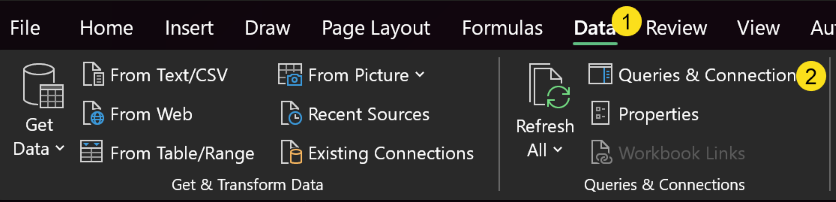
Either hover over the query and select Edit or right click and select Edit.
This opens the Power Query editor screen.
Select the Advanced Editor option.
Make change to the query and select Done. This will reload the data to the Power Query editor.
Hope this helps with your reporting in ADO!